
This article explains how to edit the Restaurants/Feature page. This page will only exist on your site if it is applicable to the property. If your site is multilingual, remember to edit the page in both French and English.
1. In the left-hand admin menu, go to Pages > All Pages and click on “Restaurants” to edit this page.
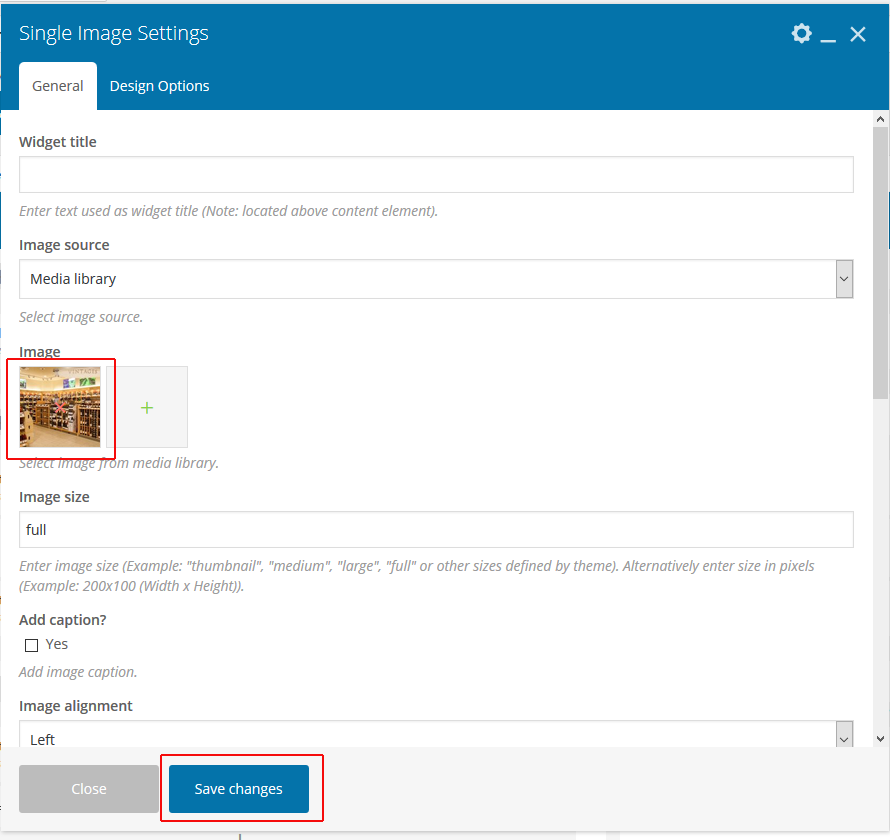
2. Add the Restaurant photo: Hover over the Single Image and click the pencil icon that appears on the green popup. Delete the current store photo by hovering over it and clicking on the “x”. Click on the green plus to add a new photo. Upload or select the store photo from the media library and click the Set Image button. The photo size should ideally be a minimum of 800 pixels wide. Once done, click the “Save Changes” button.
3. Add Mall Map:
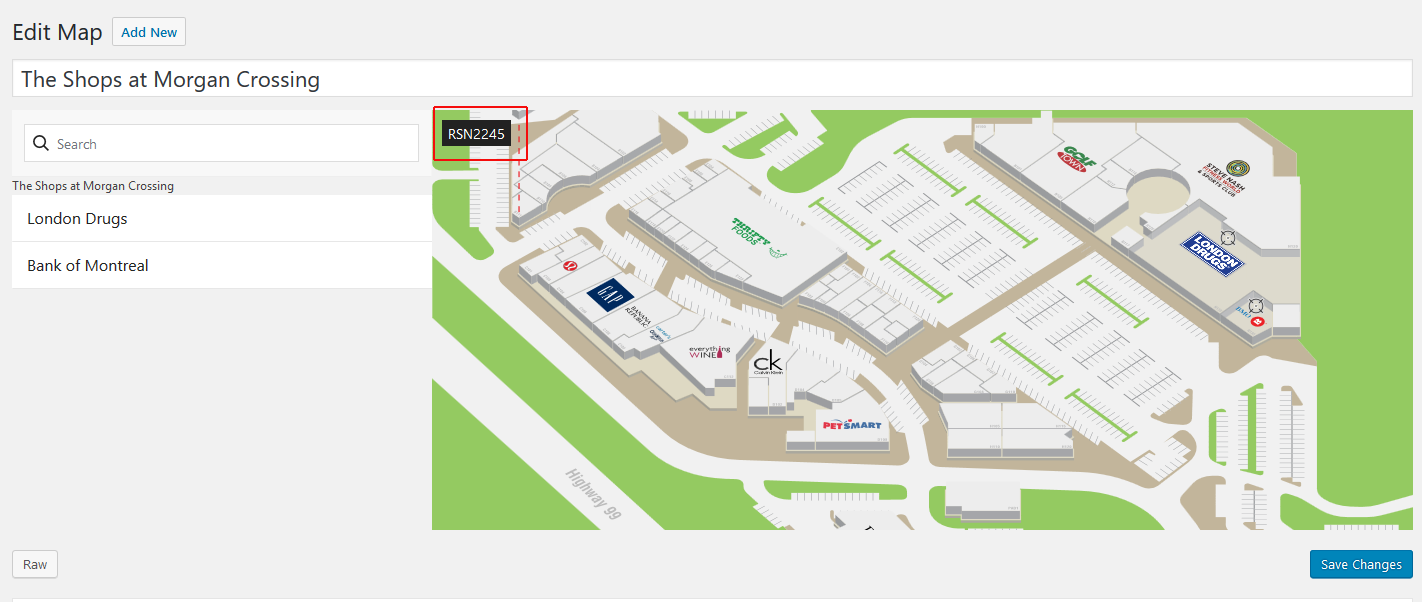
Step 1 – To add the mall map to the page the first thing you need to do is find the landmark code. In a new tab, go to Store Maps > Maps in the left-hand navigation. Click the Edit link to go to your main store map. Once there click on the store on the map and find the RSN number (eg. RSN2245). It will appear in the top-left corner of the map. This is the number that you will need to add to Step 2.
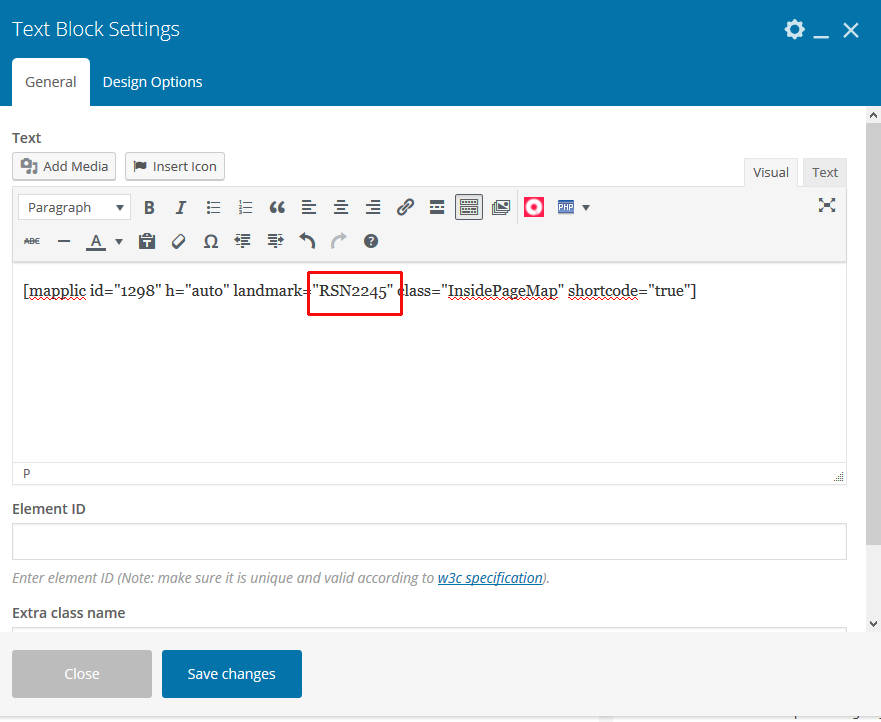
Step 2 – Go back to the Restaurant page that you were editing. Hover over the text box with [mapplic id=…] and click the pencil icon that appears on the green popup. Edit the landmark to the correct store RSN number. Once done, click the “Save Changes” button.
8. Add the restaurant details: In the dialogue box with the store information, update to the correct info. Be sure to add the email link.
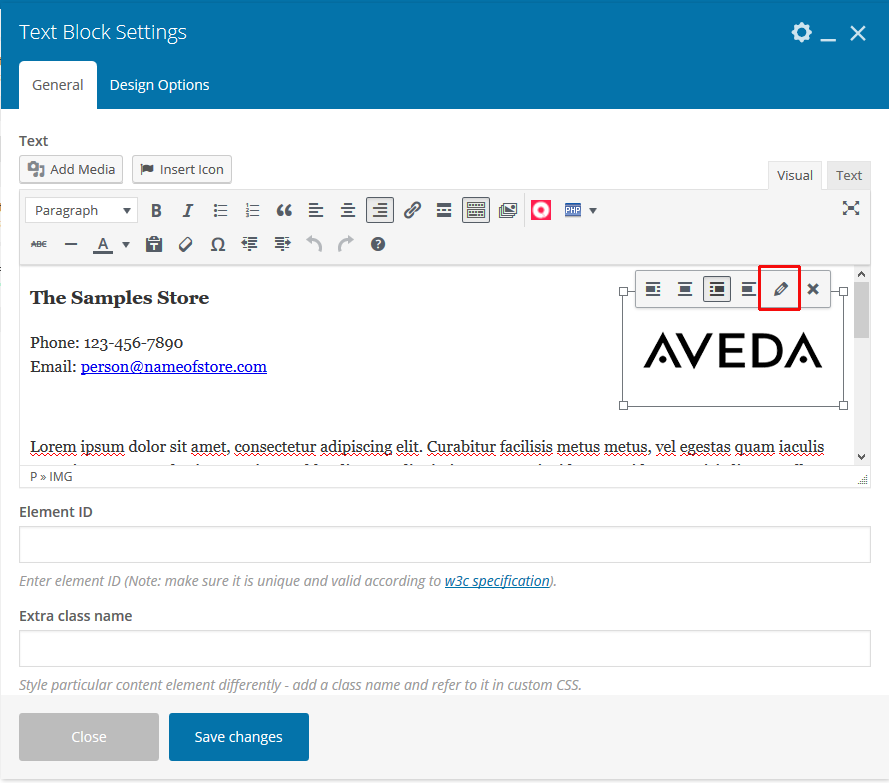
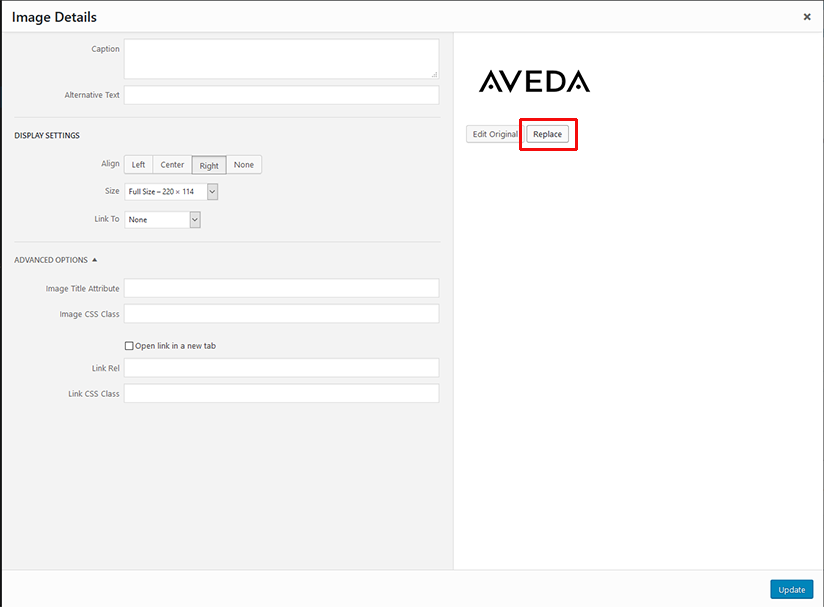
9. Add the restaurant logo: In the dialogue box with the store information, replace the existing logo in the template by clicking on the logo image, selecting the pencil icon, and then in the dialogue box that appears click the replace button to upload/select the new logo. Please note that all logo images should be on a transparent background, and 220 x 114 pixels . Click here for more info on modifying image sizes.
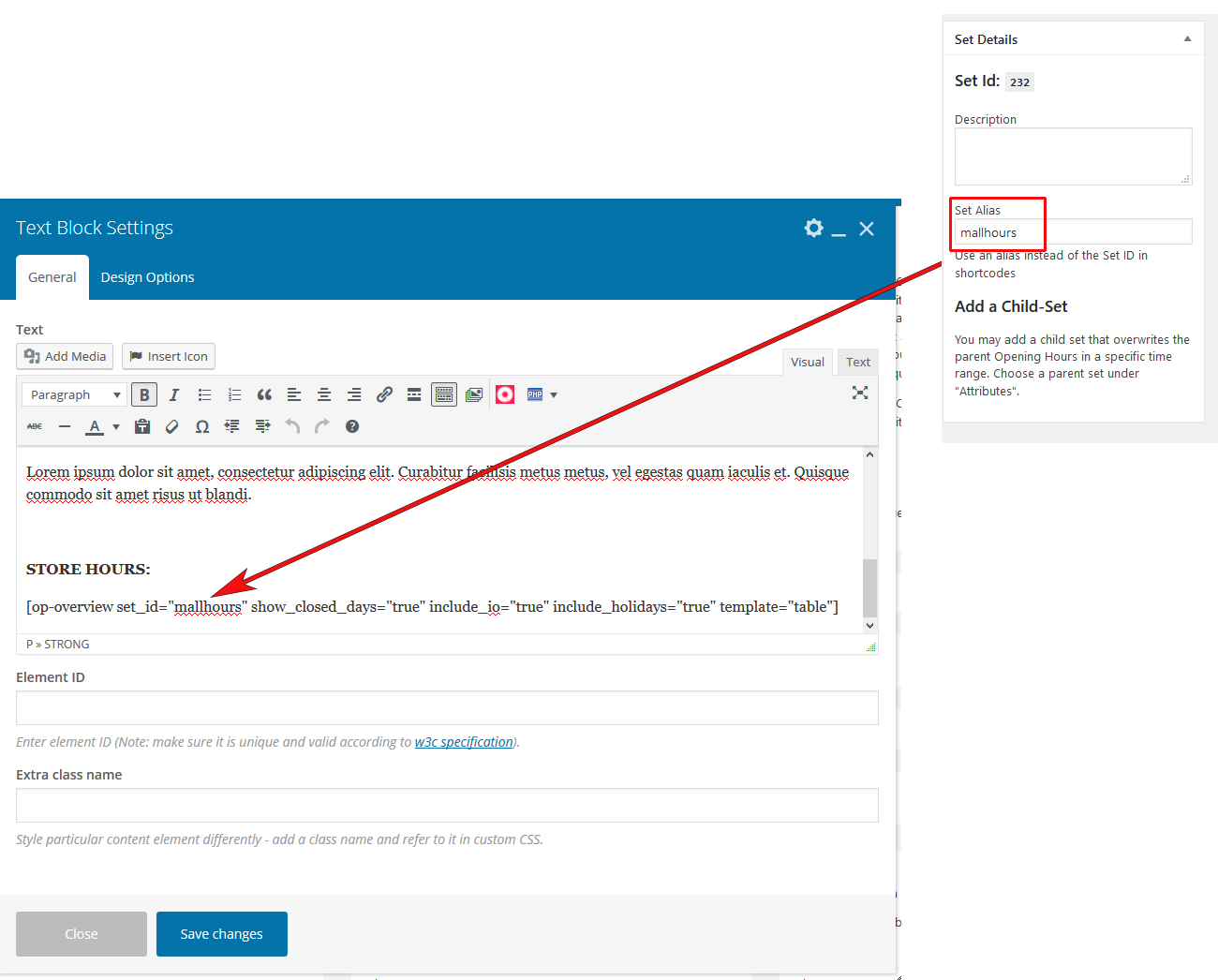
10. Restaurant Hours: If the restaurant has different open hours than the mall, you can add these to the page. For instructions on how to add store hours, click here. Once you have completed the steps to add the restaurant hours, copy out the “Set Alias” you added to the set_id=”” into the shortcode.
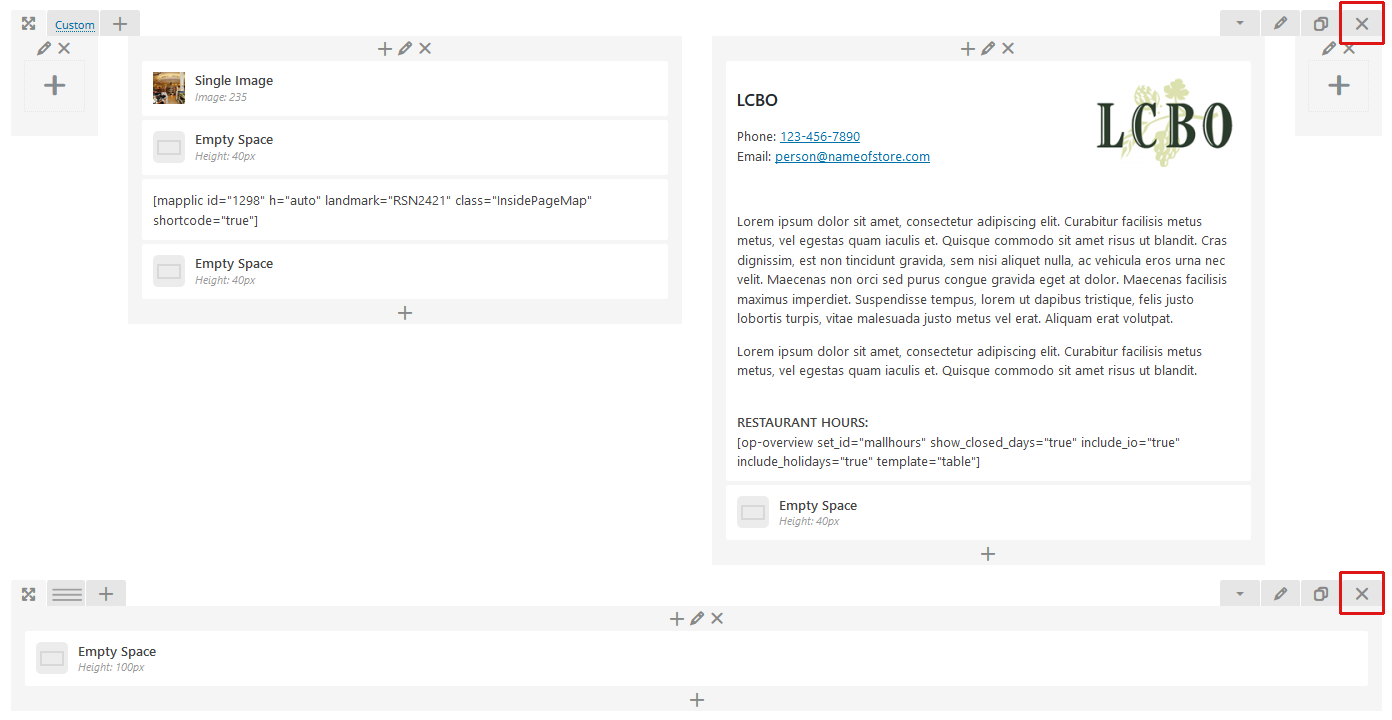
11. Complete the same steps for the second Restaurant. If you only have one restaurant you can delete the extra sections by clicking the “x” at the end of the row.
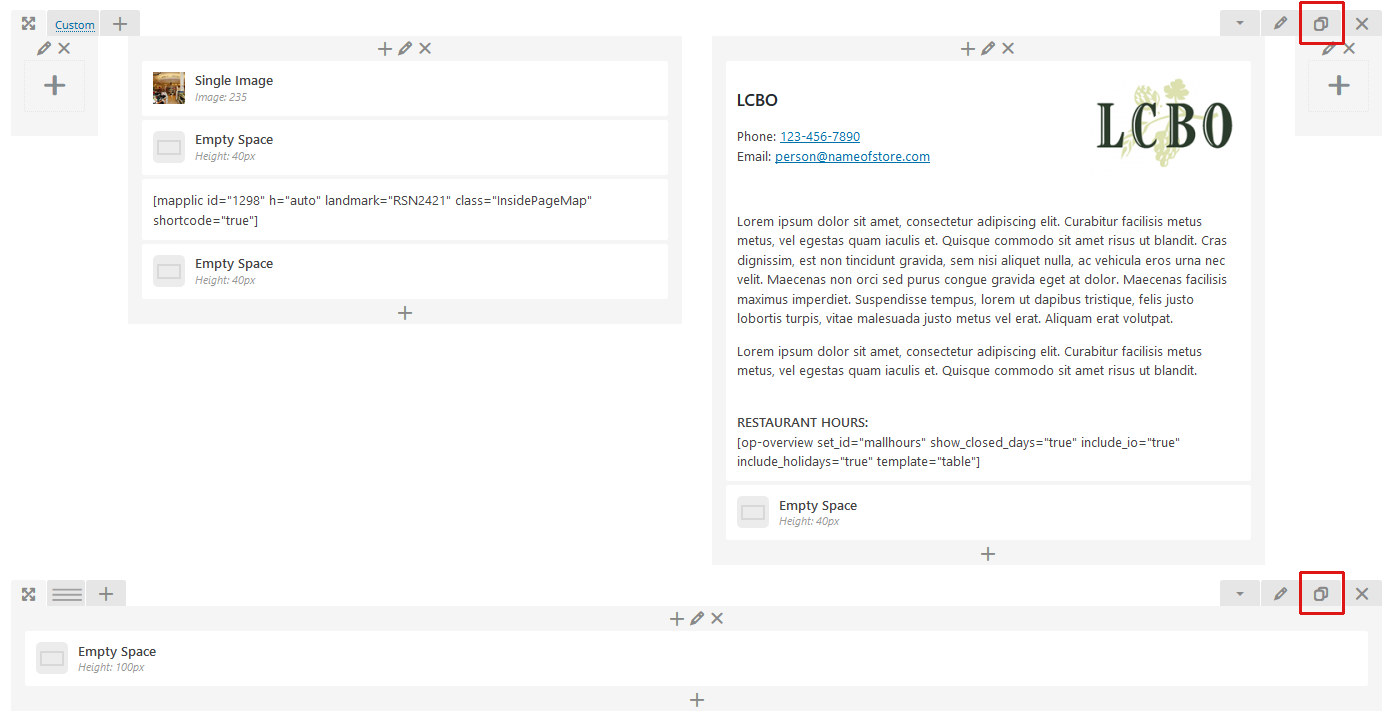
If you have more than restaurant, duplicate all of the content boxes, including the Empty space (height 100).
12. Once you are done, click the “Update” button.