This article explains how to add/modify/remove the Notification Bar (ie. the pink bar with the message at the top of the page). Note that there are a lot of settings that you can modify for the notification bar, but we have preset it so you shouldn’t need to make changes. The following are the steps to add or remove a new notification:
1. Go to “Notification Bar” (in the left hand menu).
2. Add the Content – On the WP Notification Bar Settings page, in the “Message Text” field, change the tab from “Text” to “Visual”, and then enter the message content into the box:
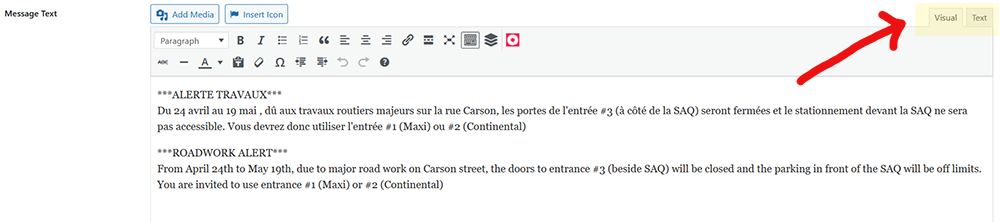
Note that both the French and English content should be added to this box.
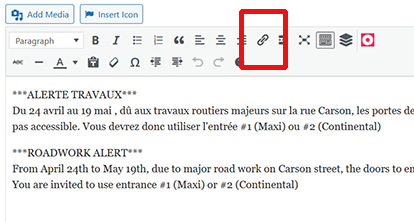
If you want to include a link to the text, highlight the text that you want to turn into the link and then click the “Link” button in the toolbar. Then follow the instructions to paste the URL into the field that appears.
3. Set the date/time – Further down the page you can set the date for the notification to automatically appear and then hide when you are done.
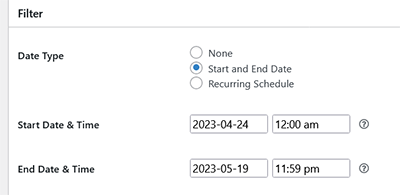
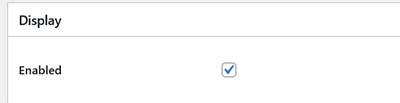
If you just want to show or hide the notification and not set a date, ensure that the date and time are set to “None”, and then scroll down and check off or on the “Enabled” checkbox, in the Display section: