This article explains how to edit the special features of the Visit page, including the Slideshow and the “Service & Accessibility” icons and text.
Slideshow
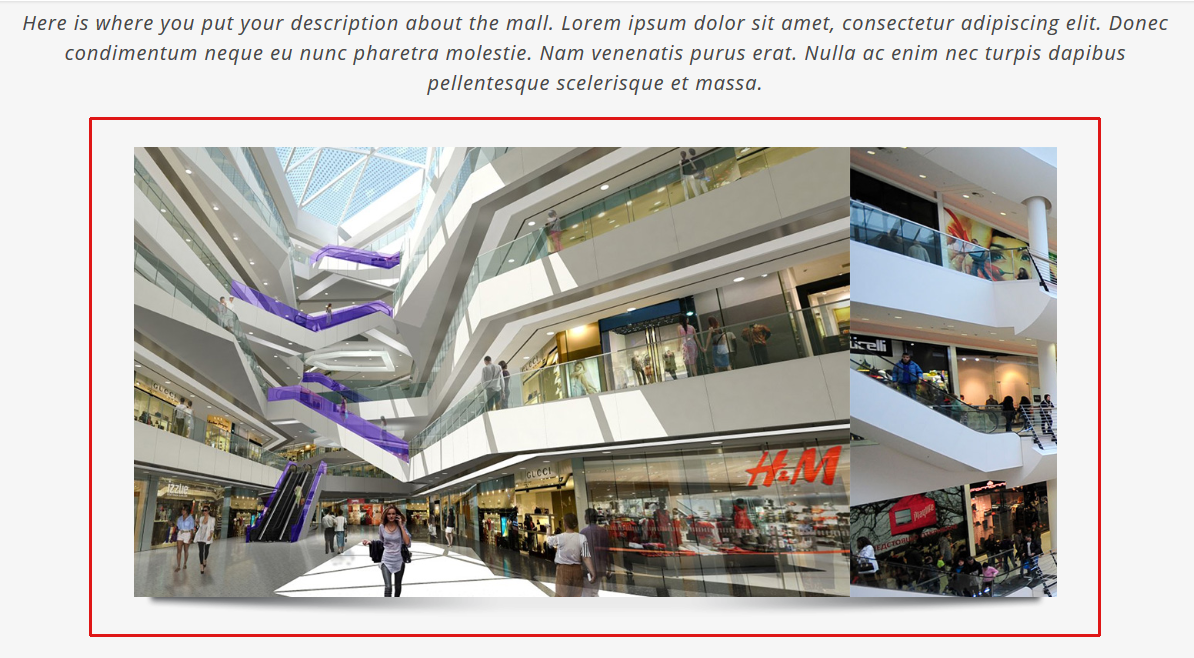
To edit the slideshow at the top of the page, follow these steps.
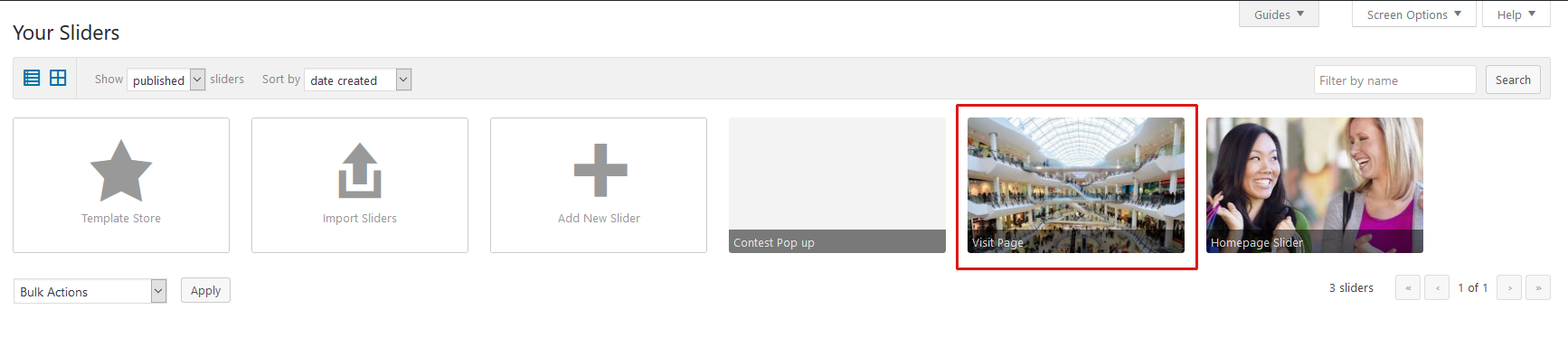
1. In the left-hand navigation, go to Sliders & Popups > Sliders
2. Click the “Visit Page” slider.
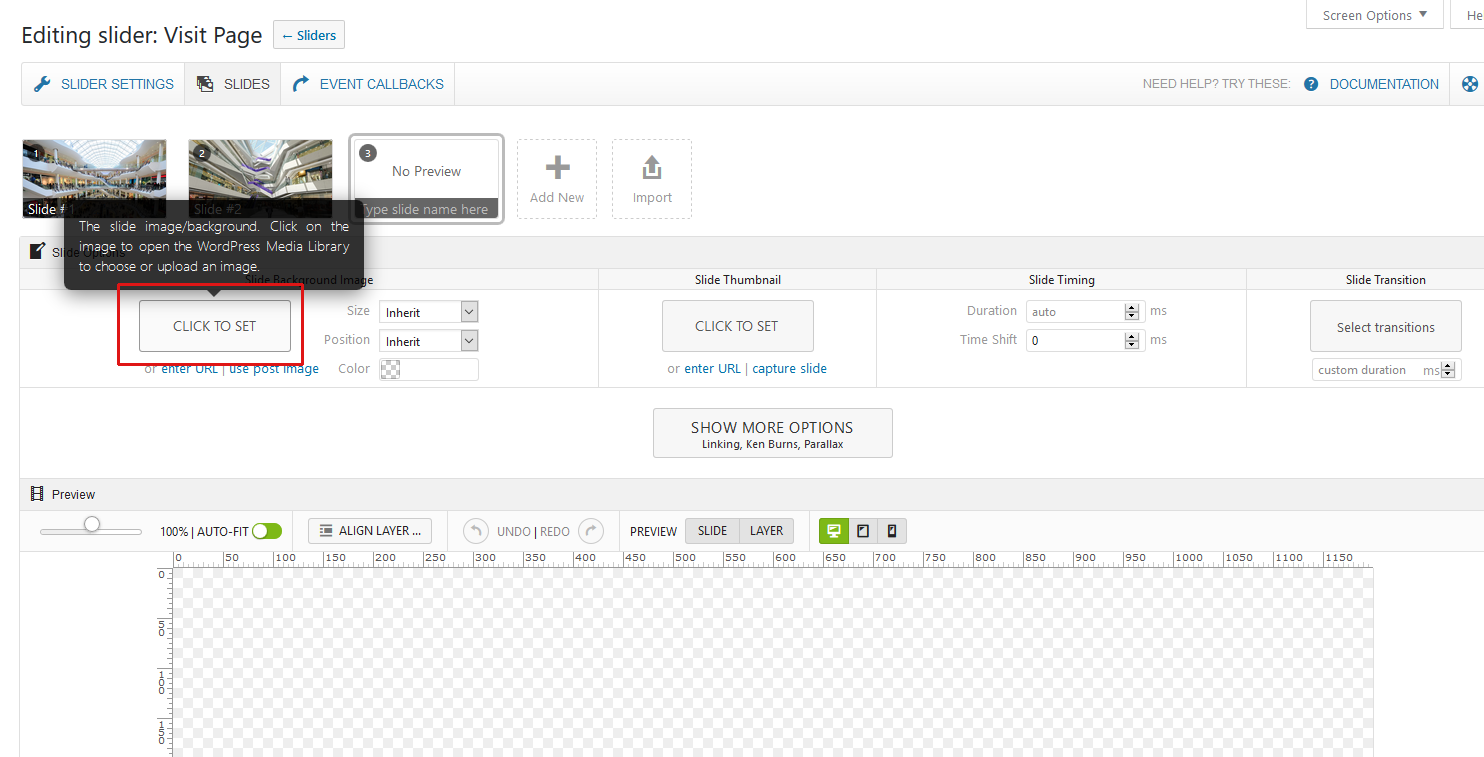
3. Once you are in that slider, click the “Add New” button.
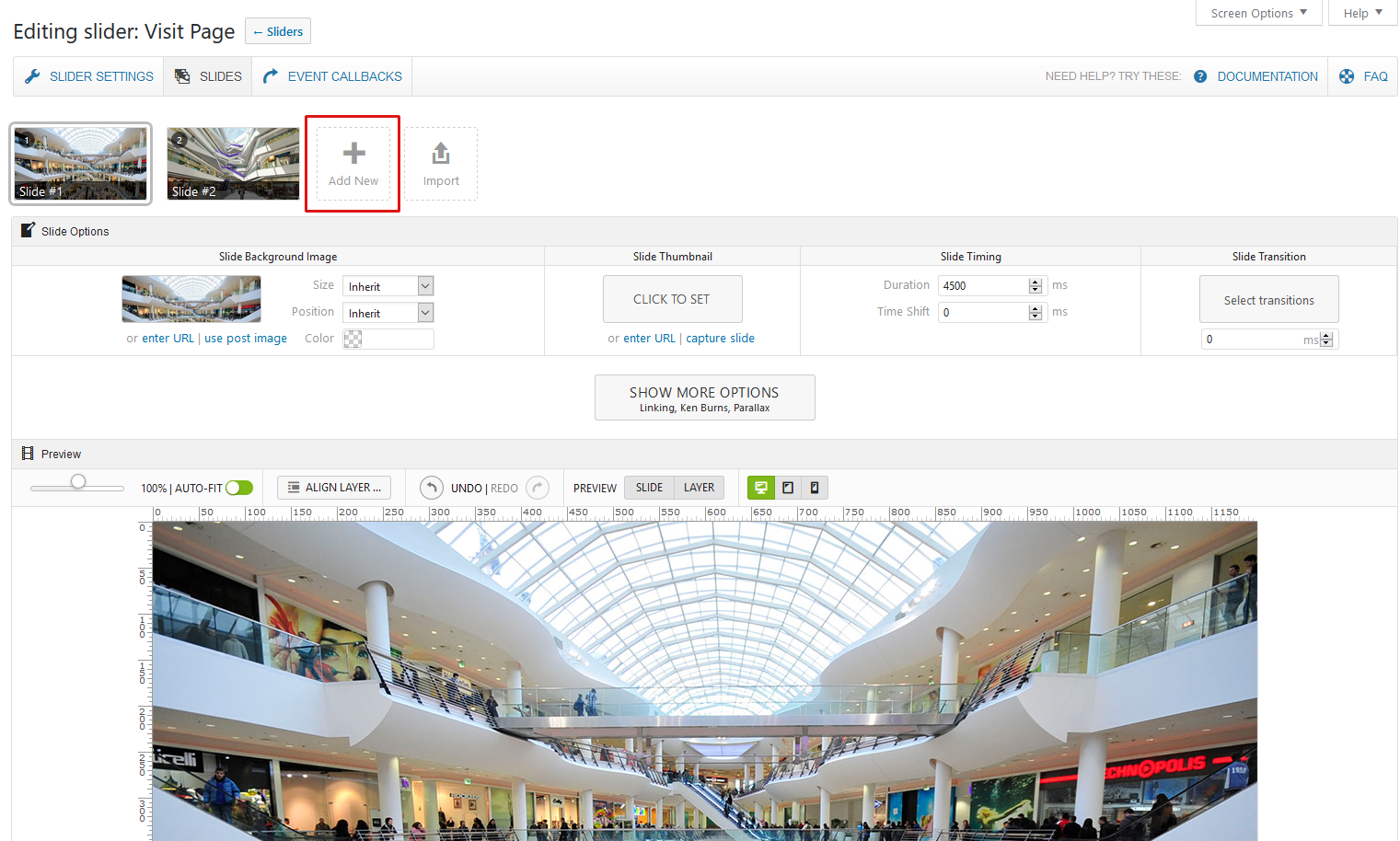
4. Click the “Click to Set” button to upload/choose your image. Ideally your photo should be a minimum of 1000 pixels wide, with a 2:1 aspect ratio width to height. (So a 1000 pixel wide image should have a height of 500 pixels.)
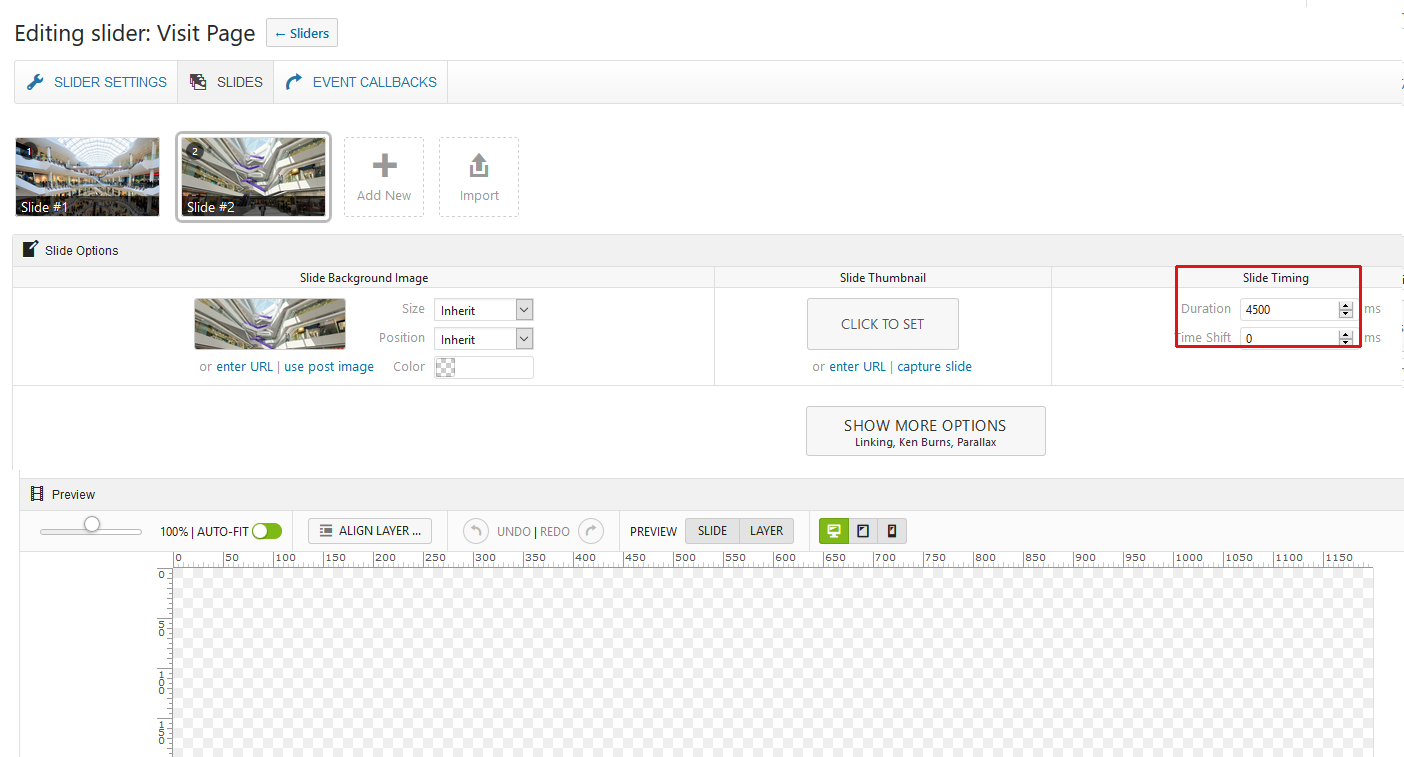
5. Set the Duration to “4500”.
6. Follow steps 3-5 to add as many photos as you wish. Ideally between 4 and 20 photos.
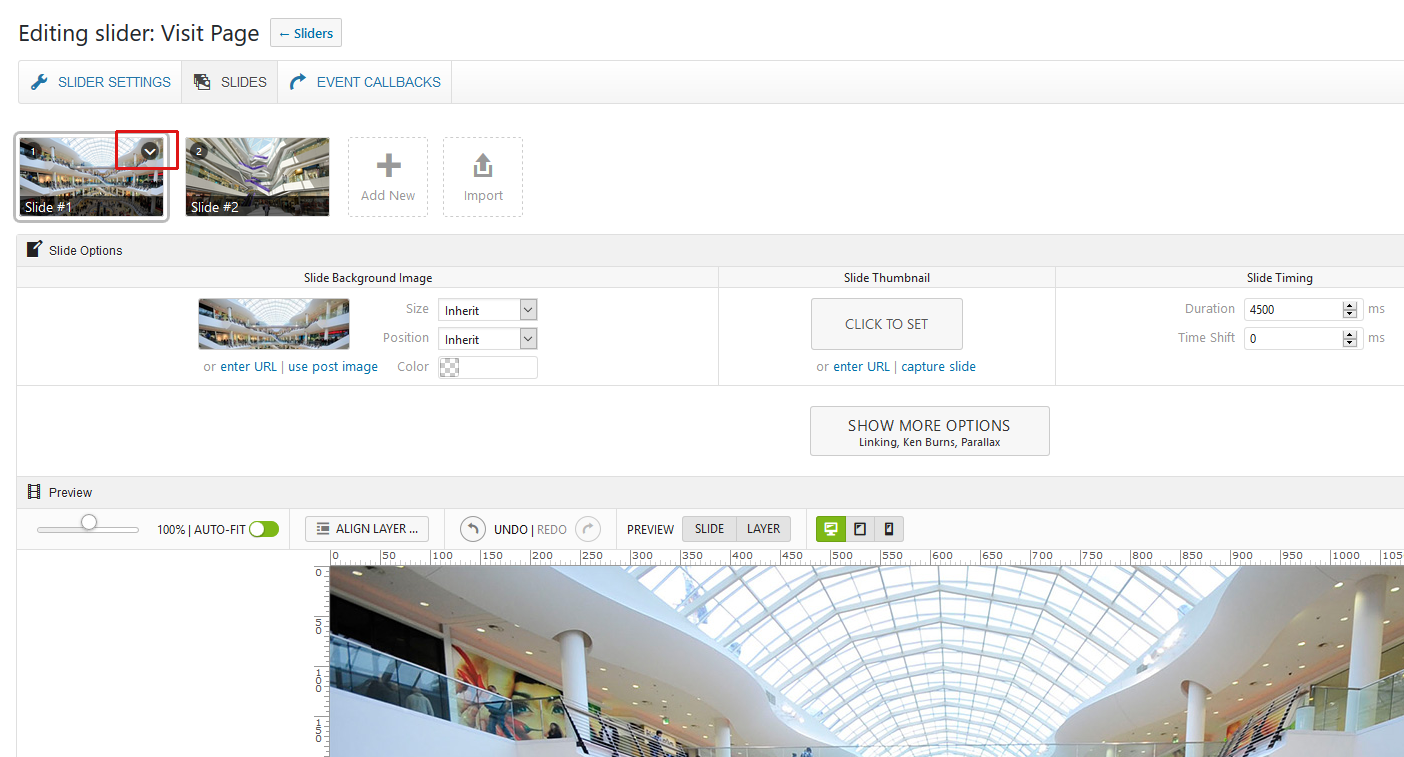
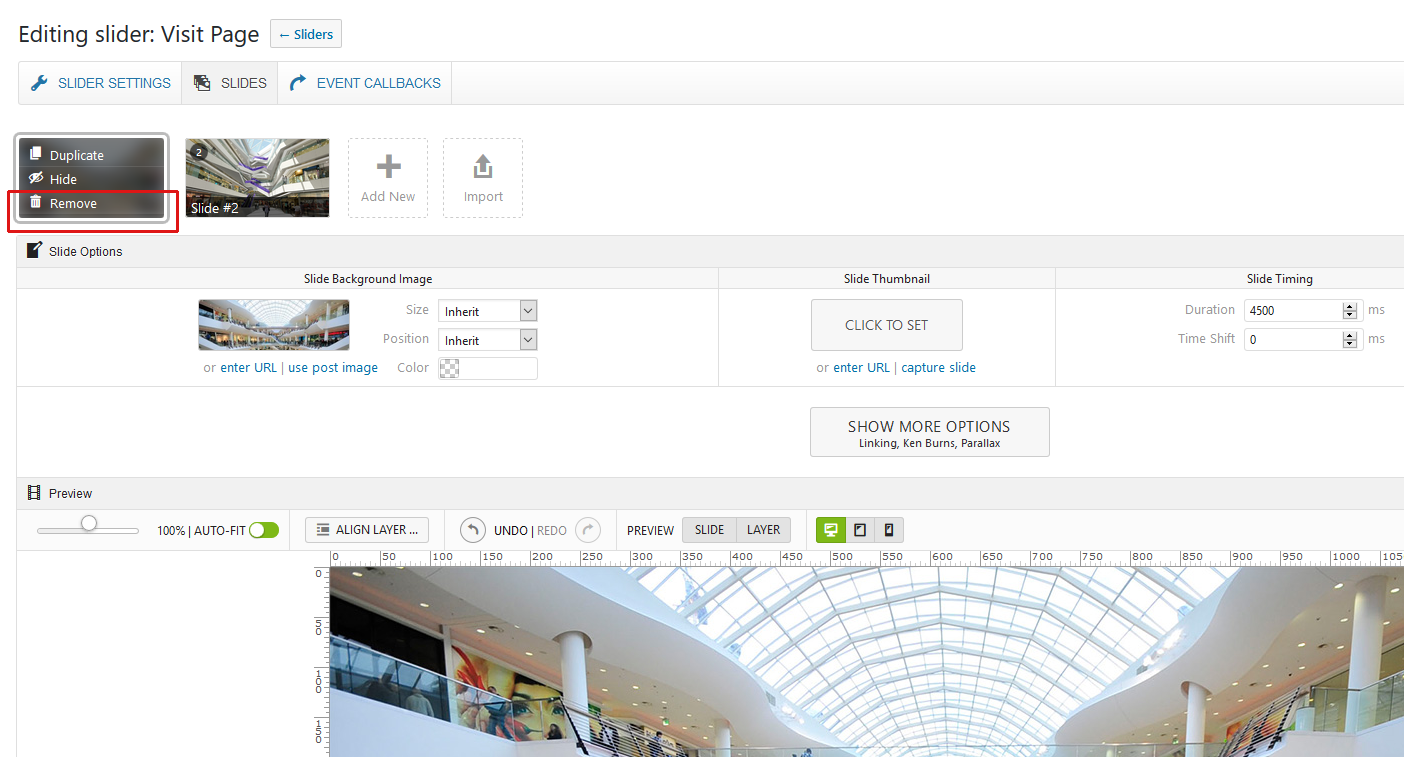
7. Once you have finished adding your photos, remove the ones that were part of the template by clicking on the down arrow on the photos you want to delete.
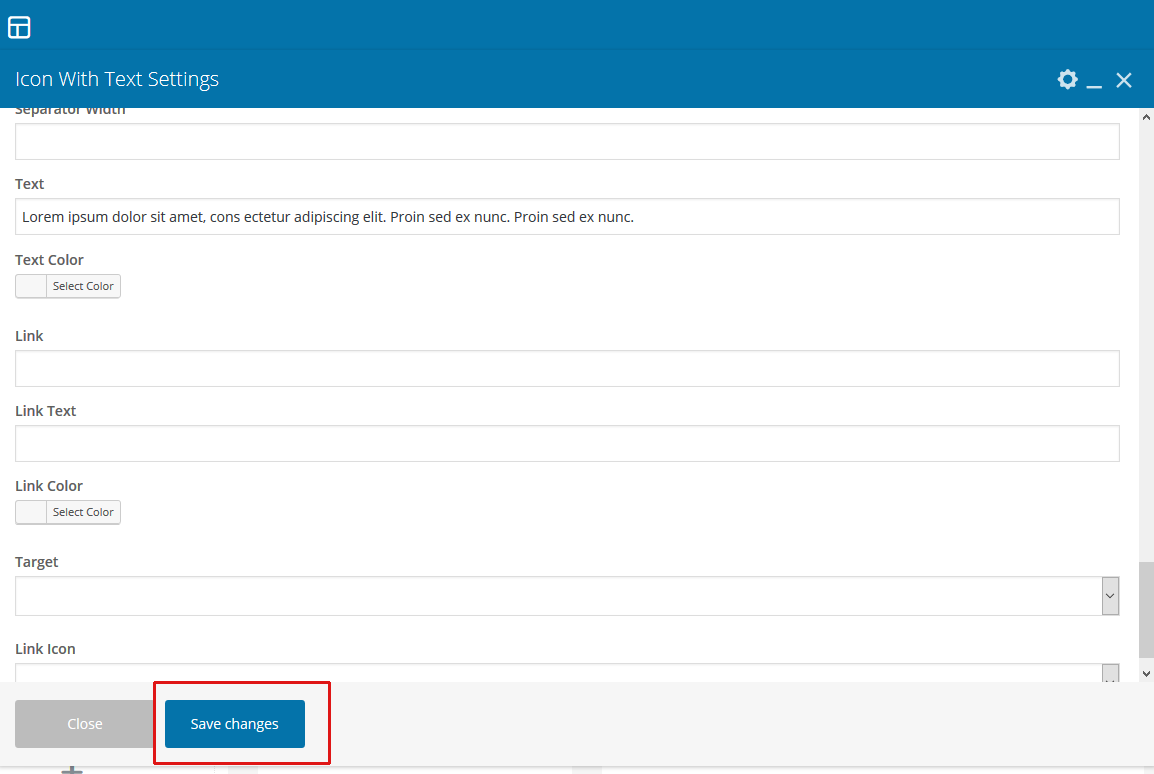
8. Then scroll down to the bottom of the page and click the “Save Changes” button.
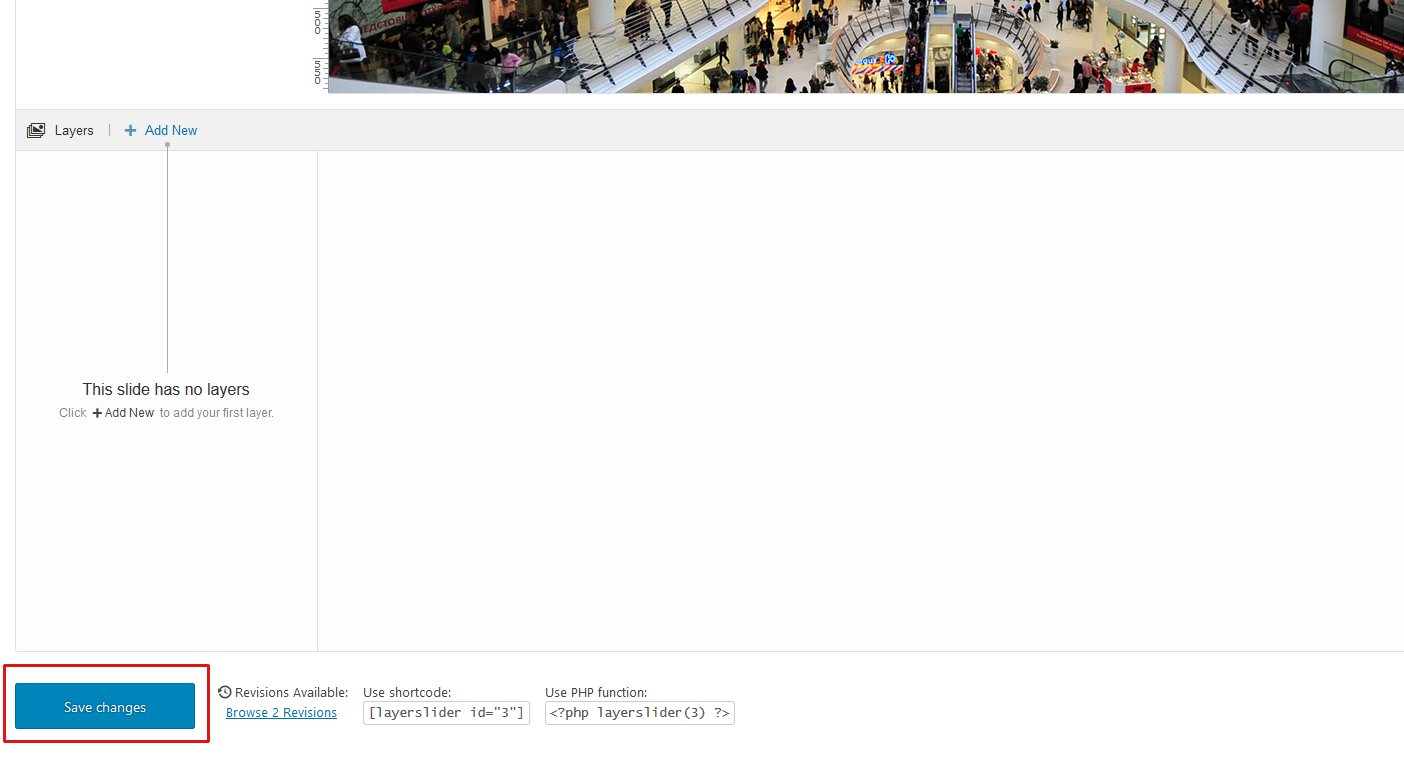
You can review your work by going to the Visit page.
Services and Accessibility
Each of the items on the Services and Accessibility section are comprised of an icon, title and description. To edit these follow the steps below:
1. Hover over the section you want to edit and click the pencil icon that appears on the green popup.
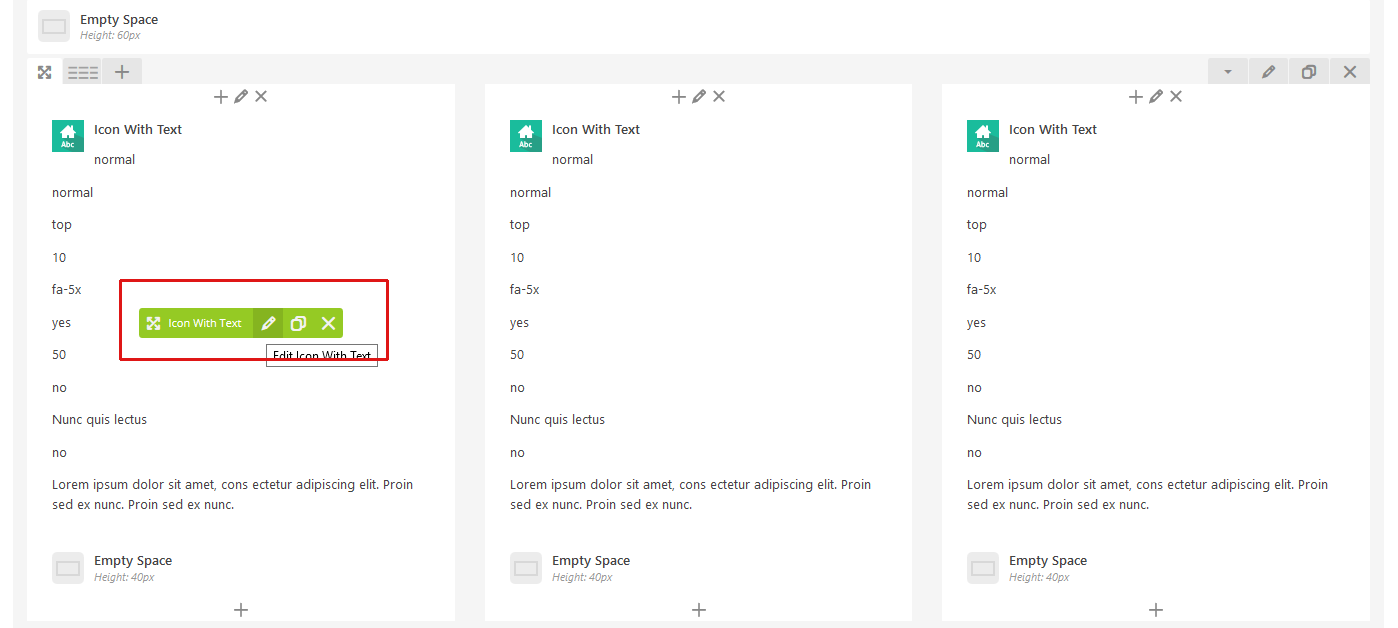
2. In the dialogue box, make these changes:
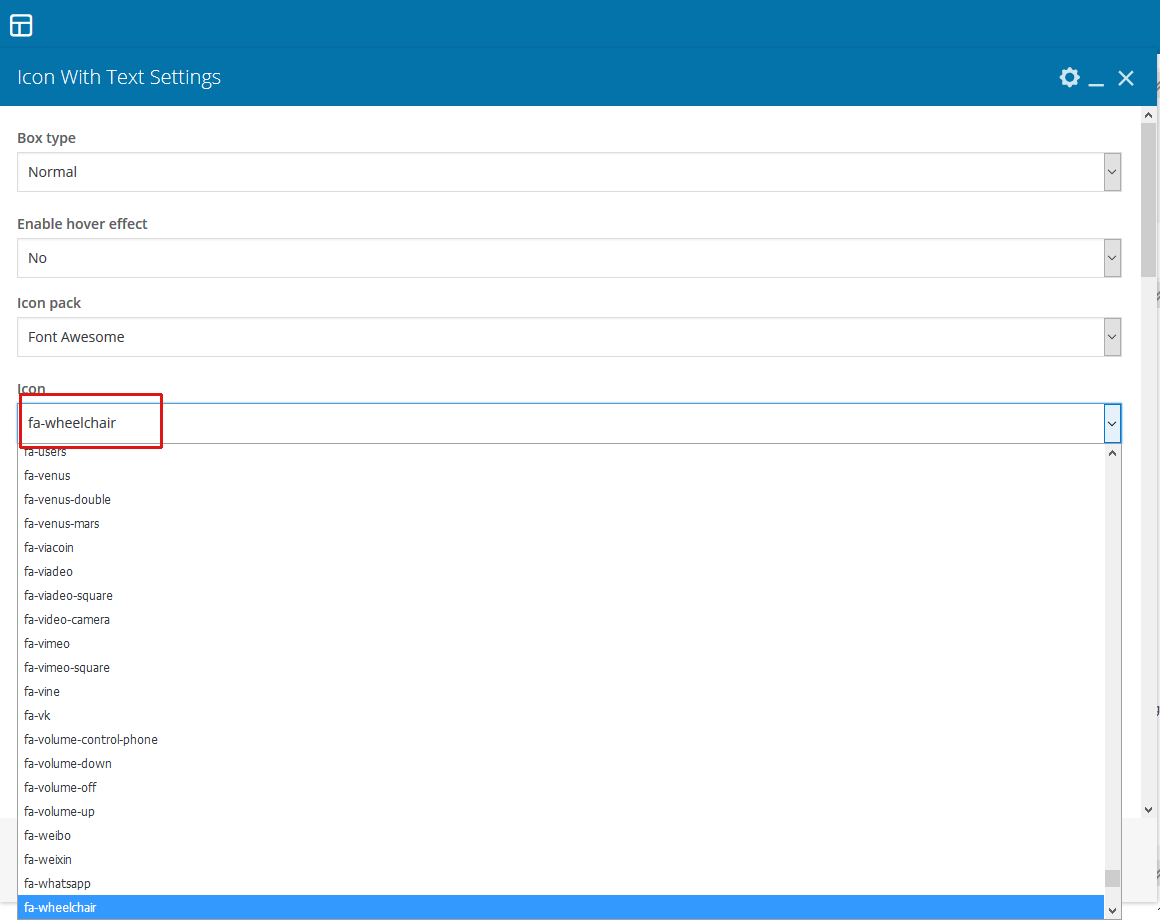
a) Icon – Click on the dropdown menu to select a new icon that is appropriate to your section.
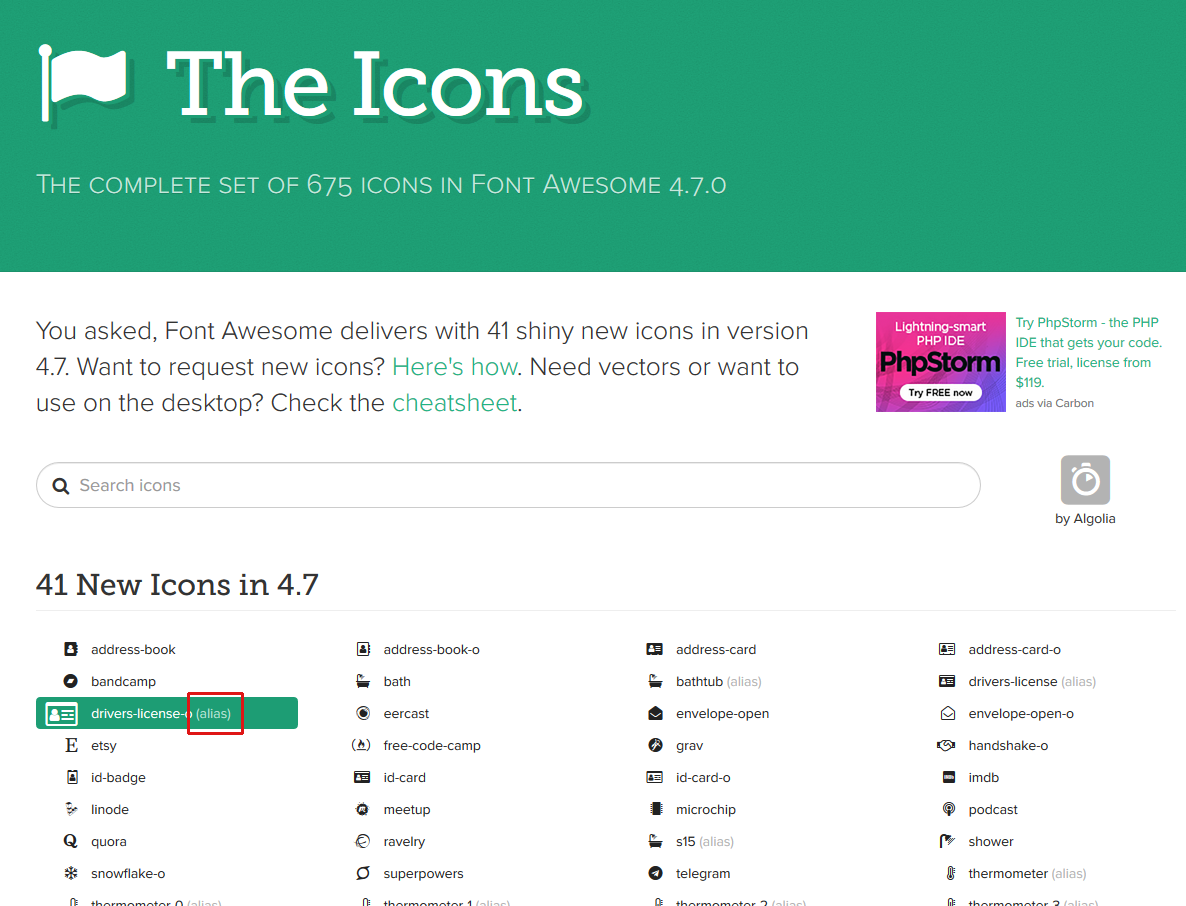
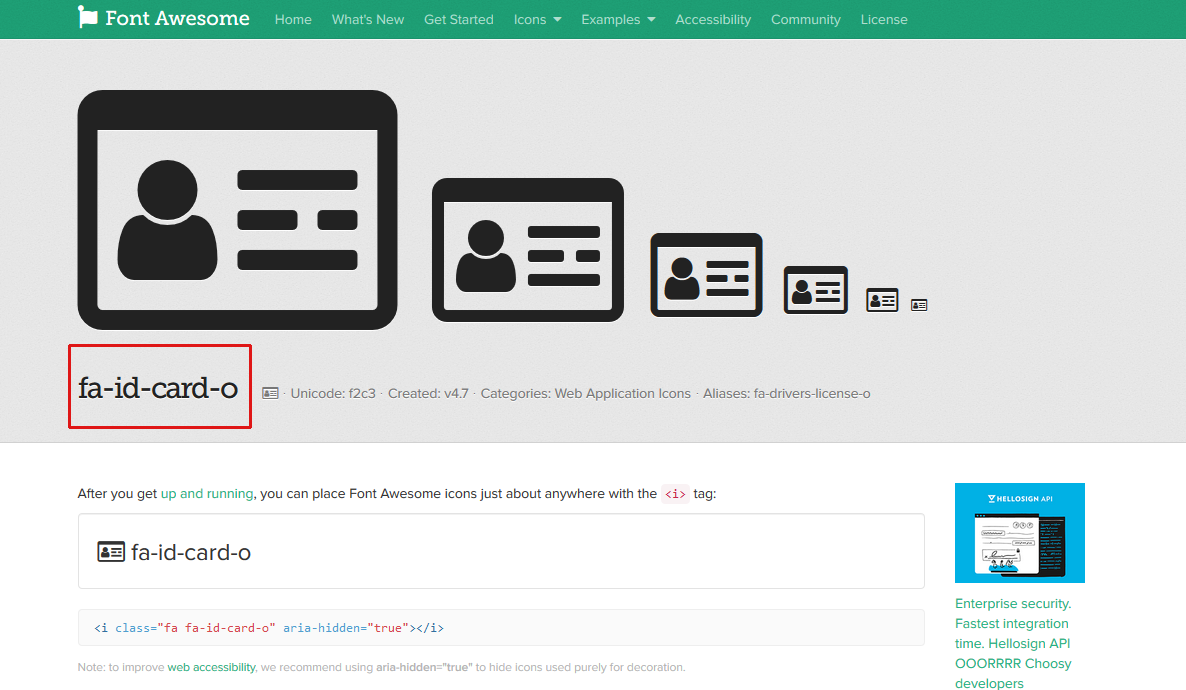
To see all of the possible icons, click here. The names of the icons correspond with the items in the dropdown, except when there is “alias” in brackets beside the icon. In these cases click on the icon and the proper name will be shown on the page.
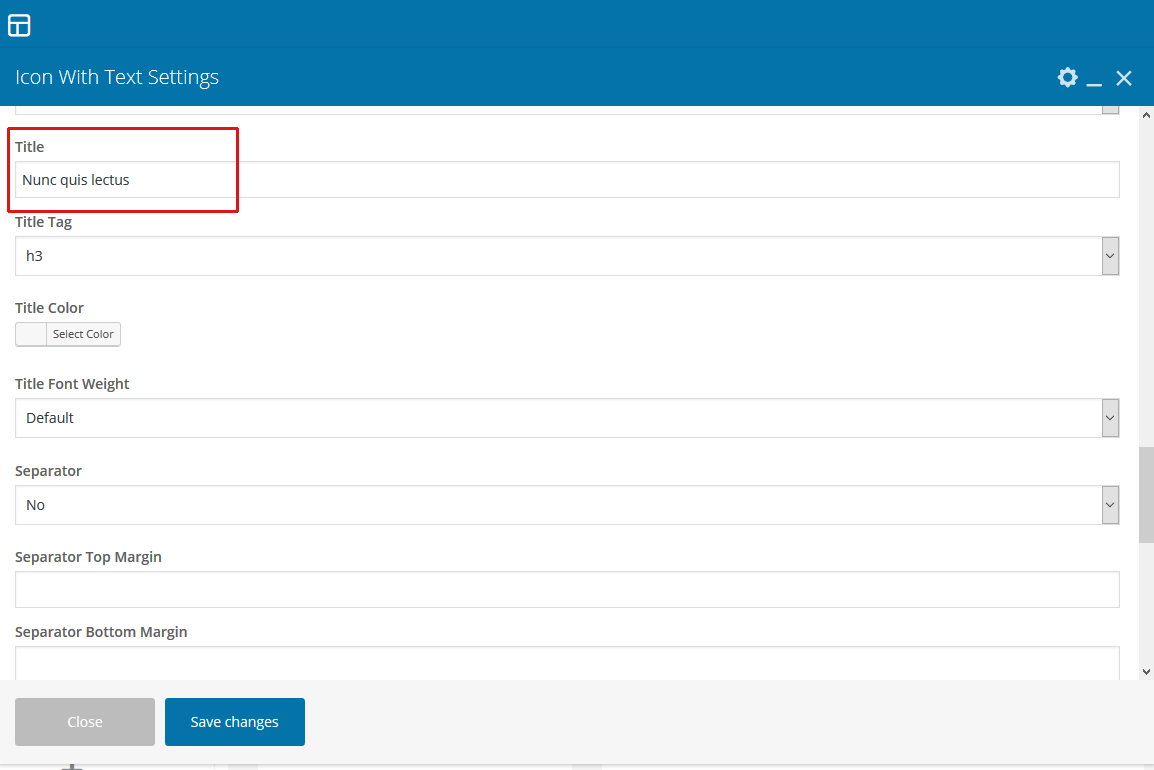
b) Title – Change the title to the title of the section.
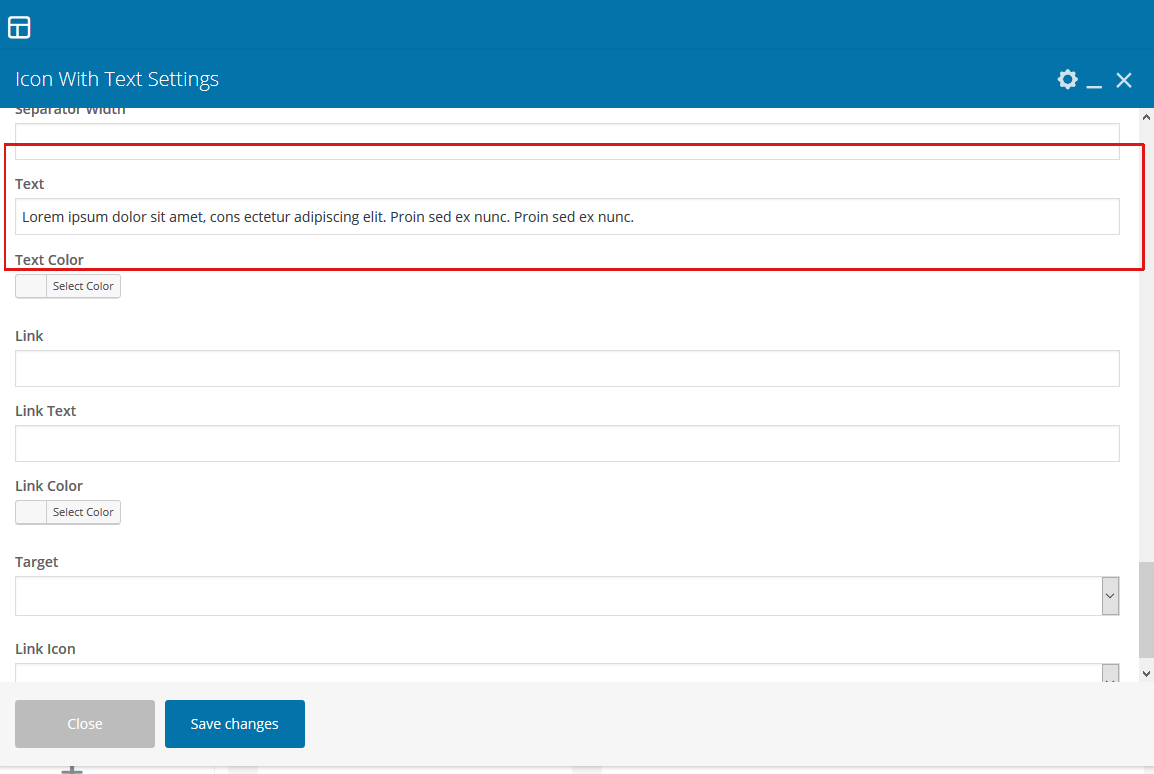
c) Text – Change the text to what you want to appear. Try to keep it brief.
3. Repeat the same process (steps 1 and 2) for each of the other sections.
4. Once you done, click the “Save Changes” button at the bottom of the dialogue box and click “Update” on the page.