
This article explains how to add sales to the site. The layouts for Events and Sales are different, but the entry of information is virtually the same. Sales posts automatically expire after the date has past so you will never need to manage these posts.
Please note: If your site is multilingual, you will need to create the sale post in both French and English if you want it to appear in both languages on the site.
Go to Sales & Events in the left-hand navigation, and select “Add Event”, (note that in the admin area sales and events are both called “Events”). Follow these steps to add an sale to the site, using the graphic below as a guide.
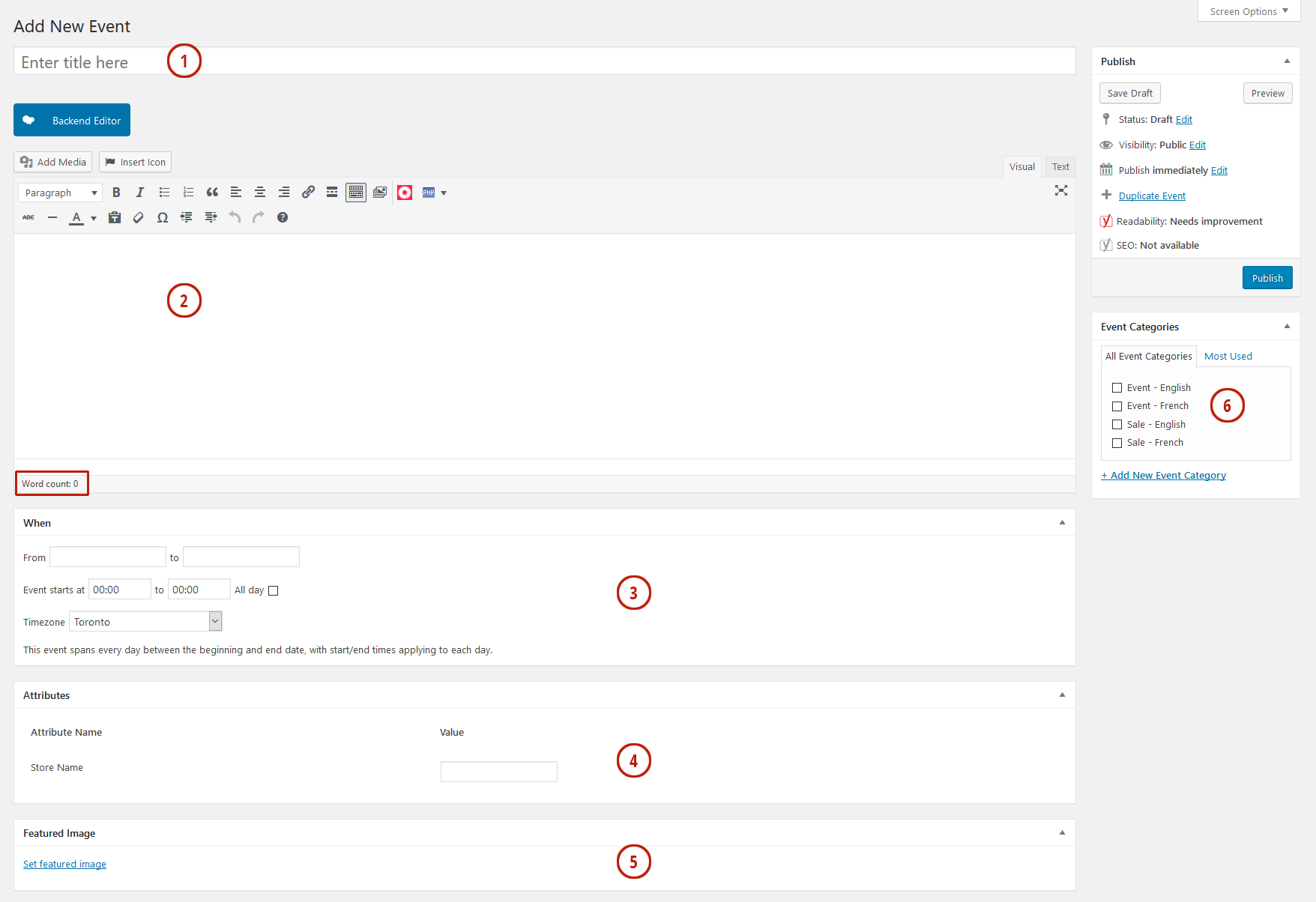
- Add a title for the Sale.
- Add text to describe the Sale. You can include links, additional images, etc.
- Select the From Date, To Date, Start Time and End Time. Sale Start and End time are based on the 24 hour clock. Or choose “All Day” if there is no specific start or end time.
- Put the store name related to the sale. For example, if LCBO is having the sale, put LCBO into this field.
- Click the “Set Featured Image” link to upload the full-sized image of the sale. For best results use an image that is at least 600 pixels wide and portrait shaped. Please note that images can only be in one of the following formats: jpeg, jpg, gif, and png.
- Under Event Categories, select the “Sale”. If you have a multilingual site, you will have the option to choose the language too.
When you are done, click the “Publish” button. You can check the sale by going to your Sales page.